
guide · #homelab · 20 min
Set Up Tailscale: Access Everything From Anywhere
Cech Tech Reviews
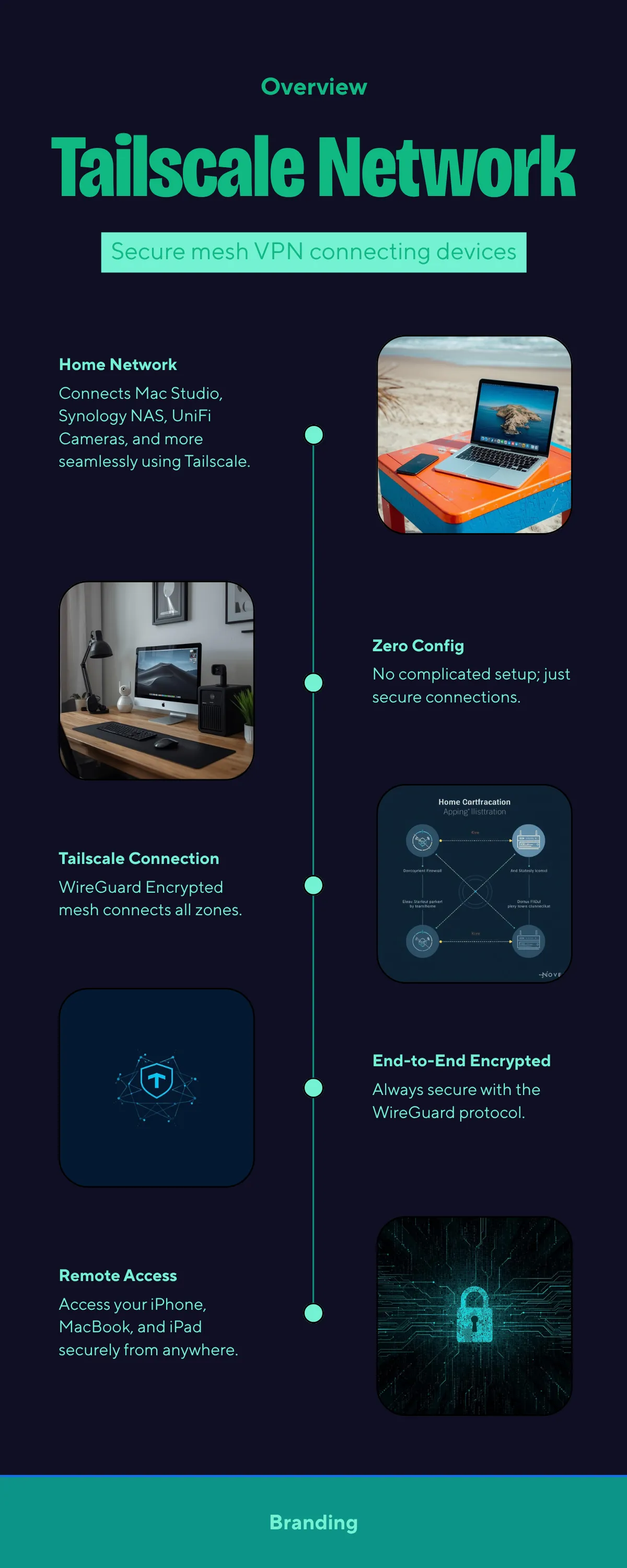
Tailscale creates a private, encrypted network between all your devices. Access your home servers, NAS, cameras, and self-hosted services from anywhere without port forwarding.
- 1
What Tailscale does (the simple version)
Tailscale connects all your devices into one private network, no matter where they are. Your phone on cellular, your laptop at a coffee shop, and your home server all see each other as if they are on the same Wi-Fi.
No port forwarding. No complex VPN configuration. No monthly fees (free for personal use up to 100 devices).
Every device gets a stable IP address (like 100.x.x.x) that never changes. You can access your Plex server at 100.x.x.x:32400 from anywhere in the world, encrypted end-to-end.
Tailscale is built on WireGuard (the fastest VPN protocol) but removes all the complexity of setting it up yourself.
- 2
Install Tailscale on your home server/computer
This is the device you want to access remotely (your Plex server, NAS, Home Assistant, etc.).
Mac:
brew install tailscale
Or download from tailscale.com/download
Windows:
Download and install from tailscale.com/download
Linux (Ubuntu/Debian):
curl -fsSL https://tailscale.com/install.sh | sh
sudo tailscale up
Synology NAS:
Install from Package Center > search "Tailscale" > Install
After installing, sign in with your Google, Microsoft, or GitHub account. Your device appears in the Tailscale admin console at login.tailscale.com.
- 3
Install Tailscale on your phone
iPhone:
1. Download "Tailscale" from the App Store
2. Open and sign in with the same account you used on your server
3. Toggle the connection ON
4. Your phone is now on the same private network as your server
Android:
1. Download "Tailscale" from the Play Store
2. Sign in with the same account
3. Toggle ON
Once connected, your phone can reach your home server's Tailscale IP even on cellular data, at a hotel, or on airplane Wi-Fi. The connection is encrypted and goes directly between your devices.
- 4
Install Tailscale on your laptop/other computers
Install on every device you want to access your home network from.
Mac: brew install tailscale (or download from tailscale.com)
Windows: Download installer from tailscale.com
Linux: curl -fsSL https://tailscale.com/install.sh | sh
Sign in with the same account on each device. They all appear in your Tailscale dashboard at login.tailscale.com with their Tailscale IPs.
Now from any device, you can access:
- Plex: http://100.x.x.x:32400
- Home Assistant: http://100.x.x.x:8123
- Your NAS: http://100.x.x.x:5000
- Any self-hosted service on your home network
- 5
Enable Subnet Router (access your entire home network)
By default, Tailscale only lets you reach devices that have Tailscale installed. To access everything on your home network (printers, smart home devices, IP cameras), set up a subnet router.
On your home server (Mac or Linux), run:
sudo tailscale up --advertise-routes=192.168.1.0/24
Replace 192.168.1.0/24 with your actual home network range. Common ones:
- 192.168.1.0/24
- 192.168.0.0/24
- 10.0.0.0/24
Then go to login.tailscale.com > Machines > click your server > enable the advertised route.
Now every device on your home network is accessible from anywhere through Tailscale, even devices that do not have Tailscale installed (like IP cameras, smart plugs, or printers).
- 6
Set up an Exit Node (route all traffic through home)
An exit node routes ALL your internet traffic through your home connection. This is useful when:
- You are on public Wi-Fi and want security
- You need to appear as if you are at home (for regional content)
- You want your home Pi-hole to block ads on your phone everywhere
On your home server:
sudo tailscale up --advertise-exit-node
Approve it in the Tailscale admin console.
On your phone or laptop, open Tailscale settings and select your home server as the exit node. All your traffic now flows through your home internet connection, encrypted.
To stop using the exit node, just toggle it off in Tailscale settings. Your direct internet connection resumes instantly.
- 7
Tailscale MagicDNS and HTTPS
Tailscale includes MagicDNS, which gives your devices friendly names instead of IP addresses.
Instead of http://100.x.x.x:32400, you can use http://home-server:32400 (or whatever your device hostname is).
Enable MagicDNS in the Tailscale admin console > DNS > Enable MagicDNS.
For HTTPS, Tailscale can automatically provision certificates:
sudo tailscale cert home-server.your-tailnet.ts.net
This gives you valid HTTPS certificates for your Tailscale devices without needing a public domain or Let's Encrypt setup.
Combine with Caddy for the cleanest setup: point Caddy at your Tailscale hostnames and it handles the rest.