
the wire · #gadgets · 2026-09-26
Improve your Windows 11 experience by changing these settings
Cech Tech Reviews
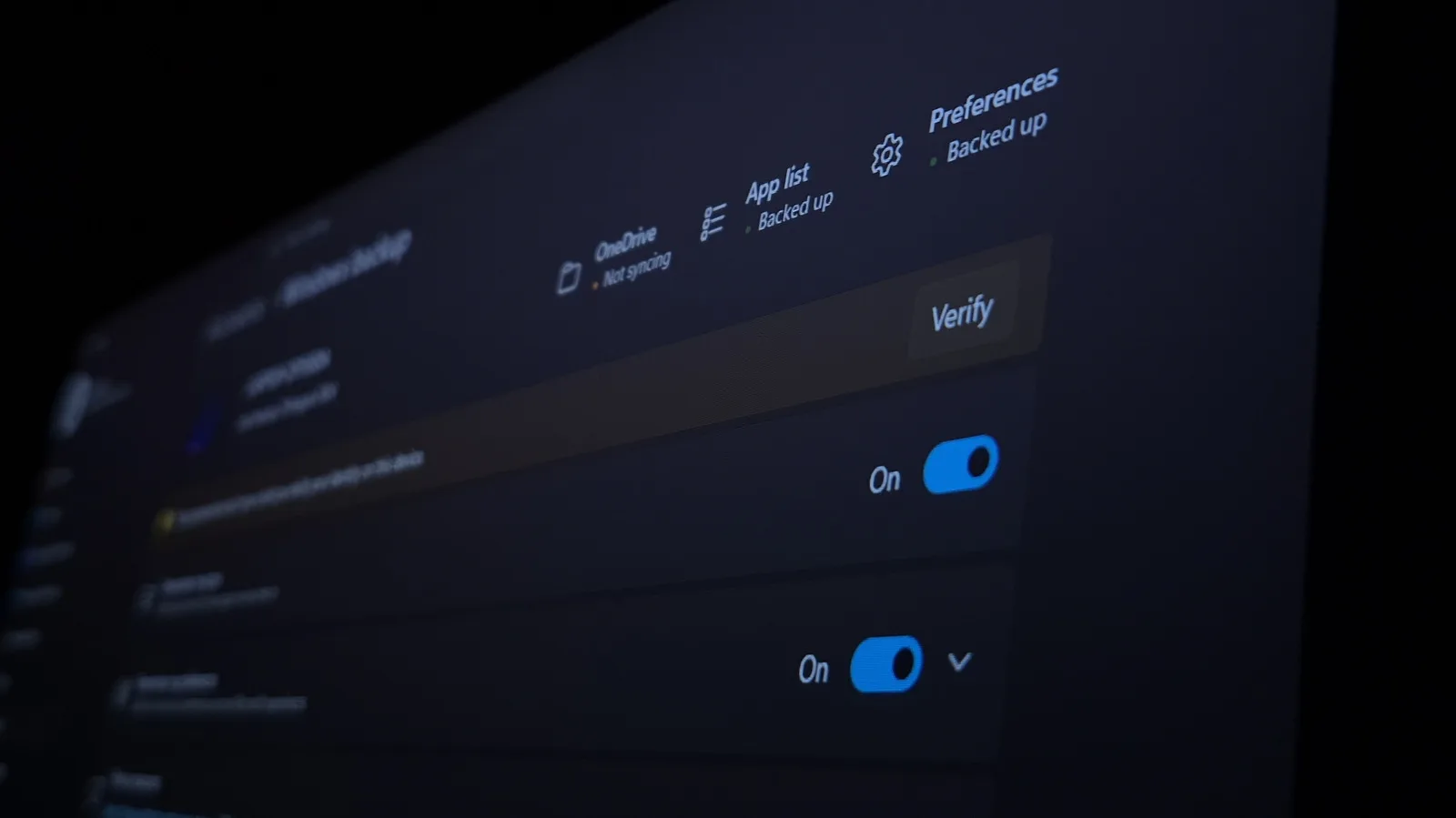
Windows 11 arrives with a sleek, modern interface that feels significantly more refined than its predecessor. However, as many tech enthusiasts have noted, the default configuration is not always optimized for serious work or high-performance tasks. According to recent guidance on optimizing the operating system, small adjustments can yield substantial improvements in both speed and usability. This is particularly relevant for professionals who rely on AI tools that demand consistent system resources.
One of the most impactful changes involves managing background applications. Many users leave unnecessary programs running at startup, which drains memory and slows down boot times. By disabling these non-essential apps, you free up valuable RAM for more critical tasks like running local language models or complex data analysis. This simple step ensures that your machine remains responsive even under heavy load, a common scenario for AI developers and data scientists.
Another crucial area to address is the notification system. The default settings often lead to a cluttered desktop experience, which can disrupt deep work sessions. Turning off non-critical notifications allows you to maintain focus without constant interruptions. For those using AI assistants to manage schedules or summarize emails, this clarity is essential. It prevents the AI from competing with system alerts for your attention, creating a cleaner workflow.
Visual effects, while attractive, can tax older hardware and reduce overall system fluidity. Disabling animations and transparency effects can make the interface feel snappier and more responsive. This is especially beneficial for users who prioritize performance over aesthetics. By streamlining the visual experience, you ensure that your CPU and GPU resources are dedicated to your primary applications rather than rendering decorative elements.
Storage management is another often overlooked aspect of Windows 11 optimization. The operating system can accumulate temporary files and updates that take up significant space. Regularly cleaning these files not only frees up storage but also improves disk I/O performance. This is vital for AI workloads that require rapid access to large datasets. A well-maintained storage system ensures that your AI tools can read and write data without bottlenecks.
Finally, consider adjusting power settings to balance performance and energy efficiency. For desktop users, maximizing performance ensures that your hardware runs at full capacity. For laptop users, finding a middle ground can extend battery life without sacrificing too much speed. This balance is key for professionals who need to work on the go while still leveraging powerful AI capabilities. Tailoring these settings to your specific workflow can make a noticeable difference in daily productivity.
What this means for you: Start by auditing your startup apps and disabling anything you do not use daily. This immediate change can boost your system's responsiveness. Try this prompt with your AI assistant to help manage your workflow: "Analyze my current task list and suggest a prioritized schedule that minimizes context switching, allowing me to focus on deep work sessions for my AI projects."
Reporting basis: original story
← back to The Wire






![macOS 27 Top Features: much more than just Siri AI [Video]](https://aideaflow.com/api/img/news/07484b5b4327f6d1.webp)