the wire · #gadgets · 2026-09-14
How to know if your USB-C ports can support video
Cech Tech Reviews
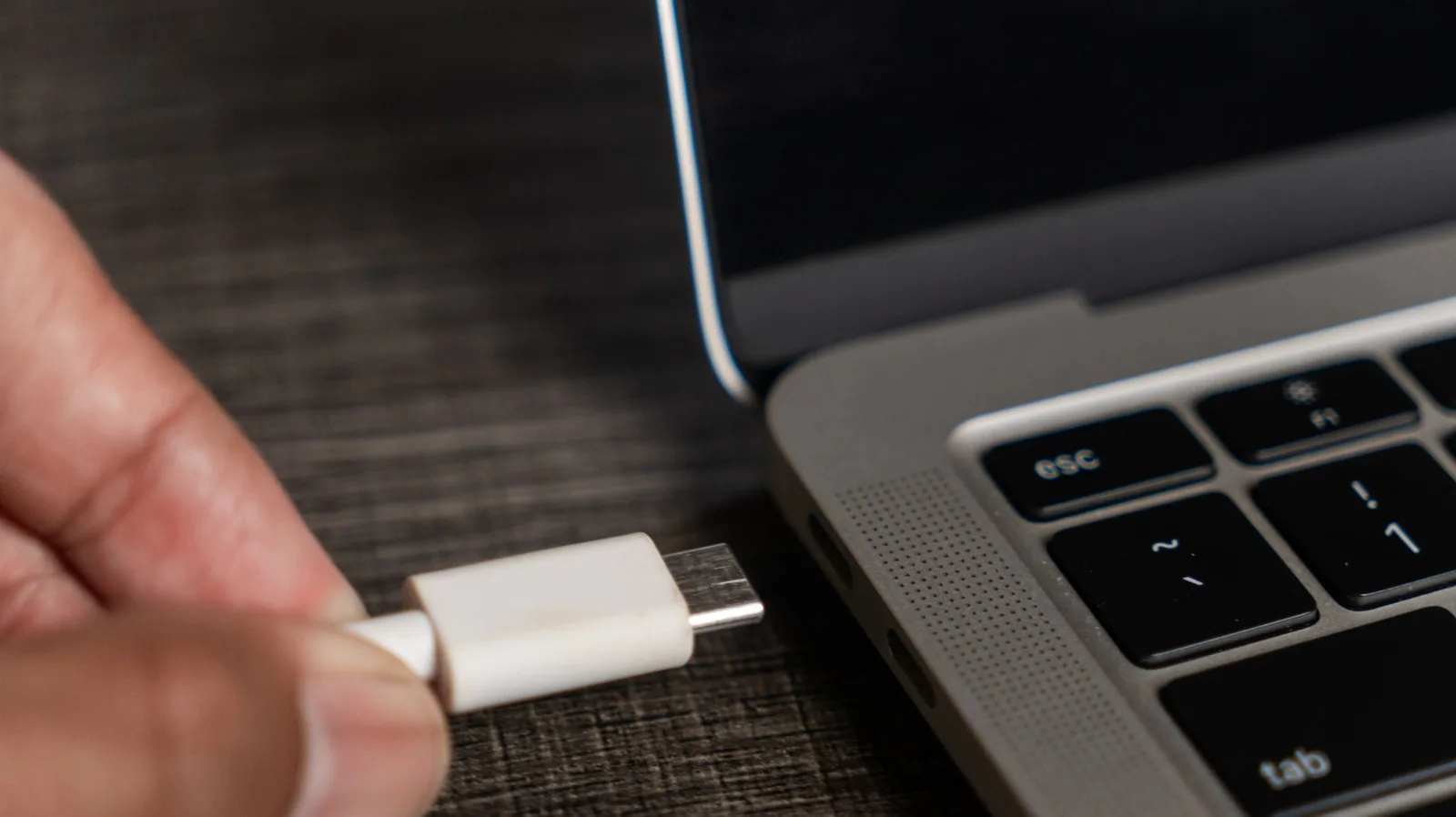
We have all been there. You buy a sleek new laptop or a high-end monitor, only to realize that your trusty USB-C cable refuses to output video. It is a frustrating experience that highlights a massive gap in consumer understanding. The USB-C connector is merely a physical shape, not a guarantee of capability. This distinction is critical for anyone building a modern workspace.
According to recent reporting on hardware capabilities, the ability to transmit video signals depends entirely on the underlying protocol implemented by the manufacturer. Simply plugging a cable into a USB-C port does not ensure that DisplayPort Alt Mode or Thunderbolt support is present. Many budget devices include the port for charging and data transfer only. This limitation often catches users off guard when they try to expand their screen real estate.
The confusion stems from the fact that USB-C has evolved into a catch-all term for connectivity. It can handle USB 2.0 speeds, USB 3.2 data, Thunderbolt 3 or 4, and even Power Delivery. Each of these standards has different bandwidth and feature sets. Video output requires specific bandwidth and signaling paths that are not always included in the base specification. Manufacturers often cut corners to save costs on lower-end models.
For professionals, this distinction has direct financial and productivity implications. Buying a $200 monitor is a waste if your laptop cannot drive it. You might end up purchasing expensive docking stations or external GPUs just to get a second screen working. Understanding your hardware limits helps you make smarter purchasing decisions. It prevents the cycle of buying gear that simply does not work with your existing setup.
The broader trend in tech is toward convergence, but the reality is fragmented. While USB4 aims to standardize these connections, adoption is still uneven across the market. Entrepreneurs and developers who rely on multi-monitor setups need to verify their hardware specifications before investing in peripherals. This is especially true for remote workers who need reliable, high-resolution displays for coding or design work.
To navigate this complexity, you must look beyond the logo on the port. Check the manufacturer’s documentation for specific mentions of DisplayPort Alt Mode or Thunderbolt compatibility. Some ports have small icons next to them, like a lightning bolt or a display symbol, to indicate video support. If the documentation is vague, assume the port does not support video until proven otherwise. This cautious approach saves time and money.
What this means for you: Before you buy any new display or docking station, verify your laptop’s USB-C capabilities. Use an AI assistant to analyze your device’s specifications. You can try this prompt: "Analyze the following laptop model and its USB-C port specifications to determine if it supports DisplayPort Alt Mode or Thunderbolt for video output. List the required cable types and maximum resolution support."
This simple step ensures your hardware investments pay off. It allows you to build a seamless workflow without unexpected connectivity issues. The future of work depends on reliable tools, and knowing your limits is the first step to mastering them.
Reporting basis: original story
← back to The Wire